How do I use Asana for my Law Firm?
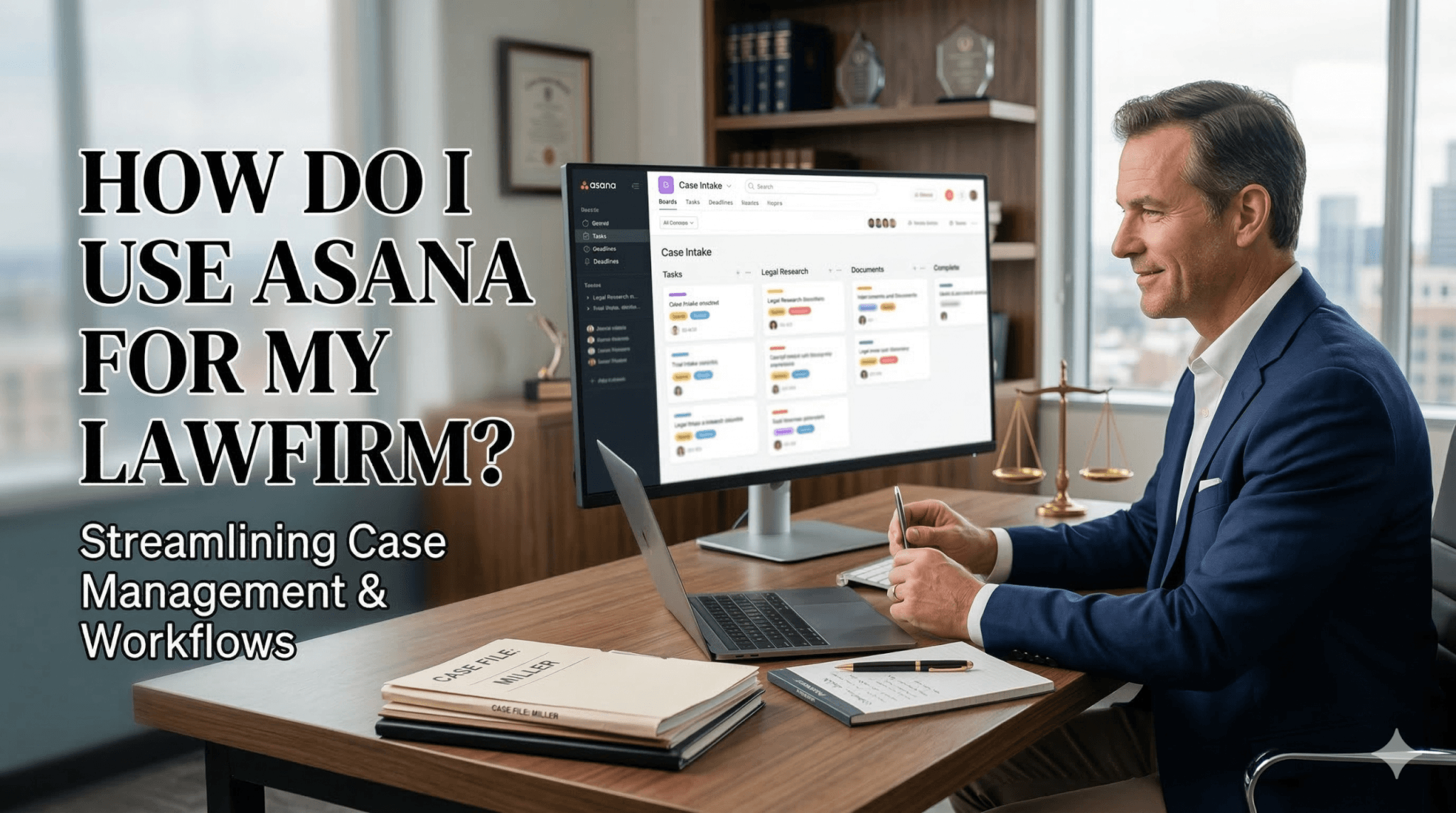
Asana for Law Firms: Templates & Workflows
I’ve spent years talking with firms who would like to be far more efficient and streamlined (gasp - even dare I say automated?) and the story is always the same. A lead comes in through a frantic email, gets scribbled on a sticky note, and eventually dies behind a filing cabinet. You aren't just losing paperwork; you’re losing revenue and sleep.
Asana isn't just a "to-do list" for people who like pretty colors. If you treat it like a digital spine, it can carry the entire weight of your intake and case management without breaking a sweat.
The Door is Always Open (and Automated)
Most people wait for a client to call, then scramble to find a pen. I learned the hard way that if you aren't capturing data at the source, you're already behind.
Use Asana Forms as your frontline. Don't let a prospect email you a messy narrative. Send them a link to a custom form that asks exactly what you need: dates, names, the core issue, and budget. The second they hit submit, that data lands in your "New Inquiries" project as a task. No manual entry. No "I forgot to ask that" follow-up calls.
Building the Assembly Line
Once a lead becomes a client, the transition usually feels like a handoff in a dark alley. It shouldn't. I’ve seen teams waste hours just deciding what happens next.
The fix is a Master Case Template. You create one project that outlines every single milestone from "Initial Discovery" to "Final Billing." When a new case opens, you duplicate that template.
- Assign roles, not names, to the template tasks.
- Set relative due dates so the schedule builds itself.
- Attach your standard operating procedures (SOPs) directly to the tasks.
The catch is making sure your team actually uses it. If it isn't in Asana, it doesn't exist. This eliminates the "what should I be doing?" Slack messages that plague your afternoons.
Stop the Status Update Fever
I once worked with a partner who insisted on a two-hour "status meeting" every Monday morning. It was a graveyard of productivity.
In Asana, you use Custom Fields to kill the meeting. Create fields for "Case Status" (Pending, Active, On Hold), "Priority," and "Lead Attorney." Instead of asking for an update, you glance at the dashboard. If the status color is red, you step in. If it’s green, you keep your hands off the steering wheel. This gives your team the autonomy they crave and gives you the bird’s-eye view you need to actually lead.
The Paper Trail that Doesn’t Get Lost
The most dangerous part of any case is the "hidden" conversation—the one that happens in a private text or a random phone call. I’ve watched cases fall apart because a critical piece of evidence was buried in someone's personal inbox.
Every task in Asana has a comment section. That is your source of truth. If a client calls with an update, you log the notes in the task. If a document is signed, you attach the PDF right there. When the inevitable "who said what and when?" moment arrives, you aren't digging through a cardboard box. You’re just scrolling up.
Efficiency isn't about working more hours; it’s about making sure those hours aren't spent looking for stuff. Build the system once, let it run, and get back to the work that actually bills.
An Asana Case Study: Discovery Response Worflow
If you aren't granular with discovery, you’re inviting a malpractice suit or, at the very least, a very uncomfortable conversation with a judge. I’ve seen million-dollar cases stall because a paralegal at a partner firm thought "someone else" was handling the privilege log.
Here is exactly how to build a Discovery Response Workflow in Asana that keeps co-counsel accountable and your deadlines green.
The Section Breakdown: From Served to Filed
Don't just create one task called "Discovery." That’s a black hole. You need a dedicated Section in your project template specifically for every set of discovery served (e.g., Pltf’s 1st Set of ROGS/RFPs).
Inside that section, every individual request gets its own task. It sounds like overkill until you’re trying to track why Request #14 is still missing a verification.
The Standard Task Template
Every "Request" task should pre-populate with these sub-tasks:
- Initial Client Intake: Send the specific request to the client for "raw" facts.
- First Draft (Responding Firm): The associate at the assigned firm drafts the legal objections.
- Lead Counsel Review: The lead firm reviews for strategy and consistency across the case.
- Verification Signature: Tracking down the client to sign the dotted line.
- Final Service & Proof: The actual filing and serving of the response.
Setting the "Who’s On First" Rules
The catch with co-counsel is the "bystander effect." If everyone is responsible, no one is. You need to use Asana Rules to force the hand-off.
- Rule 1: The Review Trigger. When a sub-task labeled "First Draft" is marked complete, set a rule to automatically assign the parent task to the Lead Counsel at the oversight firm.
- Rule 2: The 'Stale Task' Alert. If a task stays in the "Drafting" stage for more than 7 days, set a rule to add a comment tagging the project manager. It’s an automated nudge that says, "We see you're behind."
- Rule 3: The Completion Stamp. When the "Final Service" sub-task is checked, the rule moves the entire task to a "Served/Completed" section. This keeps your active board clean.
The Custom Field "Scoreboard"
To manage this at scale, you need to see the status without clicking into fifty different tasks. Add these Custom Fields to your Discovery project:
| Field Name | Options | Why It Matters |
| Drafting Firm | Firm A, Firm B, Firm C | Shows who is actually doing the legwork. |
| Response Status | Not Started, Drafting, In Review, Signed, Served | Gives you an instant "heat map" of the progress. |
| Objection Level | Standard, Complex, Privileged | Alerts the lead partner to look closer at the "Complex" ones. |
The "Human" Check: The Weekly Batch Review
One of my clients was telling me how he once had a case a case where he had over 150 RFPs. Trying to talk about all of them on a call is a death sentence. Instead, we used the Asana Filter.
On our weekly co-counsel sync, I would filter the project by "Response Status: In Review." We only talked about the tasks that were stuck. If it was "Drafting," we skipped it. We shaved forty minutes off every meeting because the "status" was already visible on the screen.
The goal here is to make the system the "bad guy." You aren't nagging your co-counsel or staff; the automated notification is. It keeps the professional relationship intact while ensuring the work actually gets done.